Google MeetFREE
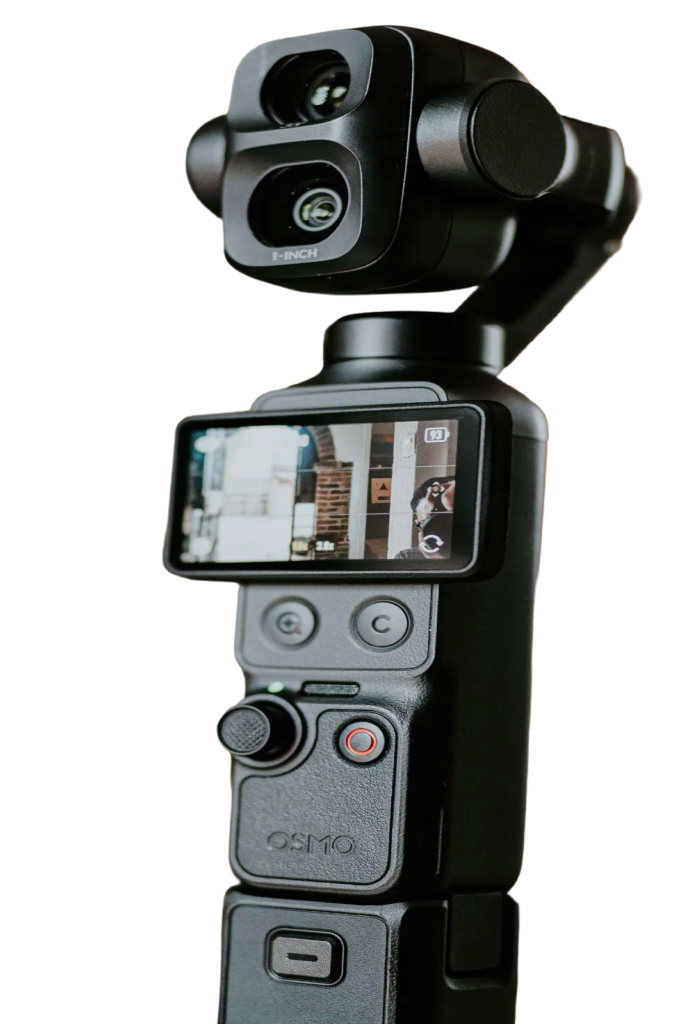
The Pocket makes a far better call camera than a laptop webcam, and with Pocket+ you can still steer it during the meeting. Pick the Pocket as your camera in Google Meet, then use Pocket+ to aim, zoom or let face tracking keep you in frame.
Set it up
- Connect the Pocket over USB-C and choose Webcam on the camera.
- In Google Meet, open the settings and pick the Pocket (for example OsmoPocket3) as the camera. For the camera's mic, pick its audio device too.
- Open Pocket+ next to the call. Both use the camera at the same time.
What shows up in Google Meet
Google Meet gets the camera's own picture and sound. Everything that physically moves the camera reaches it: joystick moves, face tracking, auto framing, scenes and the camera's zoom. Things Pocket+ does in software stay in Pocket+: LUTs, lens correction, guides and the cropped vertical picture. Colors can also look a little paler than in the Pocket+ preview.
Good to know
- Pocket+ isn't a virtual camera. Pick the Pocket itself in Google Meet, not Pocket+.
- The camera sends one format at a time. If Google Meet asks for 1080p, Pocket+ gets 1080p too.
- Shortcuts like ⌘T or ⌥1 work while Pocket+ is the active app. Keep its window visible next to Google Meet; it stays on top by default.
Using the Pocket in Google Meet doesn't need Pro. Each Pocket+ feature keeps its own Free or Pro status.