ZoomFREE
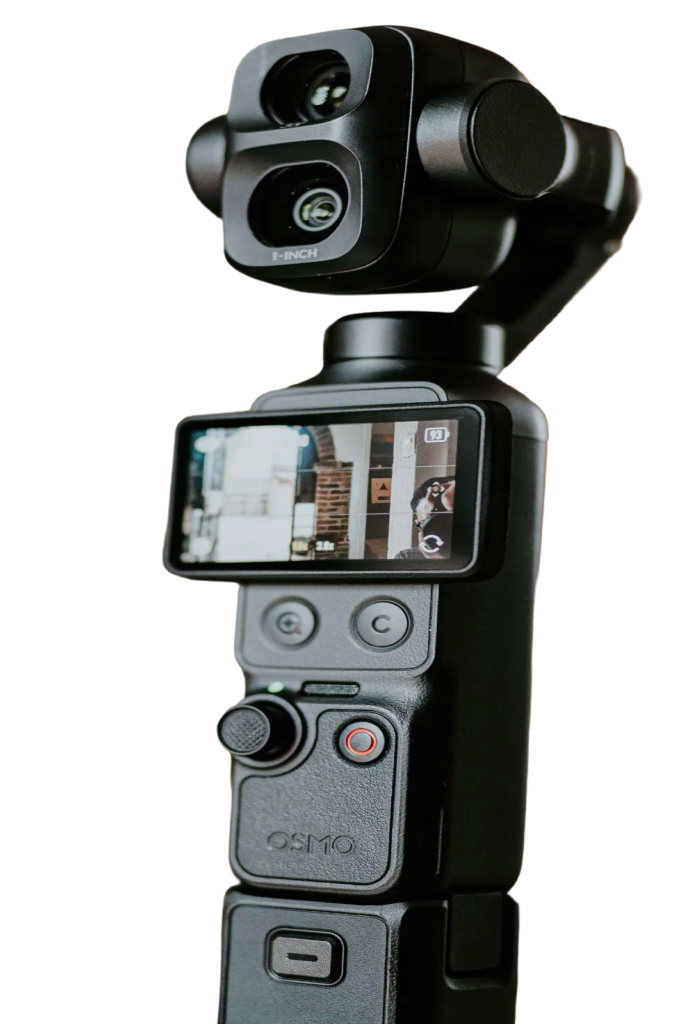
Show up in Zoom with a proper camera and keep control of it. Choose the Pocket as your camera in the Zoom app, then use Pocket+ to aim the gimbal, zoom in or let face tracking follow you while you talk.
Set it up
- Connect the Pocket over USB-C and choose Webcam on the camera.
- In Zoom, open Settings › Video and pick the Pocket (for example OsmoPocket3). Under Audio, pick its microphone if you want the camera's sound.
- Open Pocket+ next to the meeting. Pocket+ keeps its preview running while Zoom uses the camera.
What shows up in Zoom
Zoom gets the camera's own picture and sound. Everything that physically moves the camera reaches it: joystick moves, face tracking, auto framing, scenes and the camera's zoom. Things Pocket+ does in software stay in Pocket+: LUTs, lens correction, guides and the cropped vertical picture. Colors can also look a little paler than in the Pocket+ preview.
Good to know
- Pocket+ isn't a virtual camera. Pick the Pocket itself in Zoom, not Pocket+.
- The camera sends one format at a time. If Zoom asks for 1080p, Pocket+ gets 1080p too.
- Shortcuts like ⌘T or ⌥1 work while Pocket+ is the active app. Keep its window visible next to Zoom; it stays on top by default.
Using the Pocket in Zoom doesn't need Pro. Each Pocket+ feature keeps its own Free or Pro status.