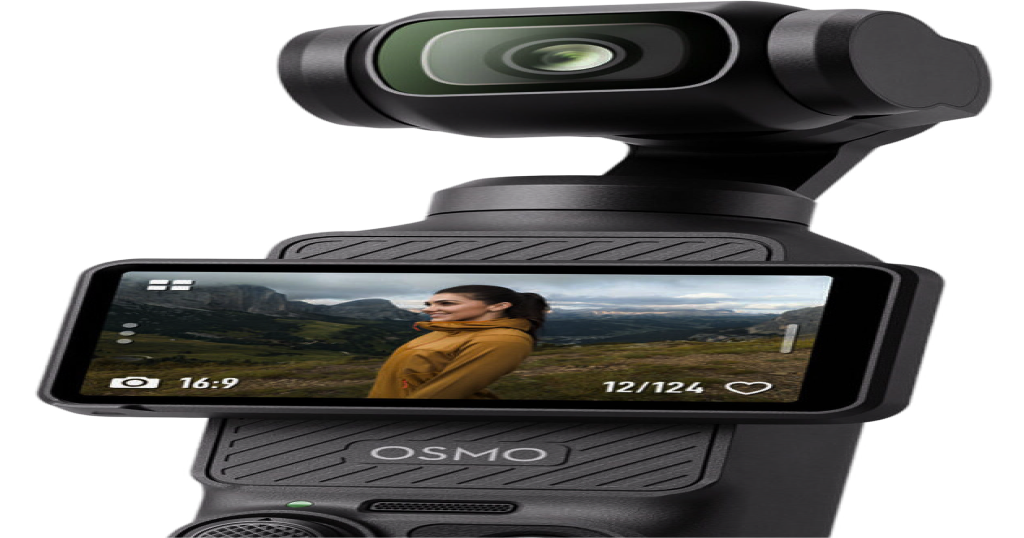
Switch Pocket 3 angles
with one key
Tutorials, unboxings and streams usually need a second camera: one on your face, one on your hands. With a Pocket 3 on a gimbal you can get away with one, as long as switching angles takes one keystroke instead of reaching over and turning the camera by hand.
The idea
Over USB, the Mac can tell the Pocket's gimbal exactly where to point and how far to zoom. So a "camera angle" is just three numbers: pan, tilt and zoom. Save them once, and the camera can go back to that exact shot whenever you want, as often as you want.
In Pocket+ these saved angles are called scenes. In the video above there are two: Portrait, a classic face cam, and Desktop, an overhead view of the keyboard.
Save a scene
- Aim the camera: drag the picture to turn the gimbal, and scroll to zoom.
- Press ⌘S, or click + in the Scenes column at the top right of the preview.
- Give it a name, like Face, Desk or Product, and save.
You can keep up to nine scenes. Hover over a scene's number to rename or delete it.
Switch between them
Press ⌥1 to ⌥9, or click a scene's number. With Smooth motion on, which is the default, the gimbal and zoom glide to the saved shot instead of jumping, so the move looks fine even if you're recording.
Because it's a keyboard shortcut, you can switch angles while your hands are busy, or map the keys to a Stream Deck or any macro pad that sends keystrokes, as long as Pocket+ is the active app.
Setups that work well
| Use | Scenes |
|---|---|
| Keyboard or coding tutorials | Face cam · overhead on the keyboard |
| Unboxings and product reviews | Face cam · close-up on the product · wide shot of the desk |
| Drawing, crafts, cooking | Face cam · overhead on your hands |
| Two people at a desk | One scene per person · wide shot of both |
Place the Pocket where it can see all your angles. Next to the monitor, slightly above eye level, usually covers both your face and the desk in front of you. The gimbal has plenty of range to tilt down.
Vertical gets its own scenes
If you also shoot vertical video for Shorts, Reels or TikTok, a shot that looks right in 16:9 rarely works in 9:16. So vertical mode has its own set of scenes, and switching orientation also switches which scenes ⌥1–9 recall.
Things to know
- Scenes are saved on your Mac, not on the camera. They're still there after you unplug the Pocket or restart the app.
- Jumping to a scene turns face tracking off, because you've just picked a fixed shot.
- Keep the camera in the same spot. A scene stores where the gimbal points, not what it sees. If you move the Pocket to another place on the desk, save your scenes again.
- Scenes are part of Pocket+ Pro.
Pocket+ is a free Mac app for the DJI Osmo Pocket 2, 3, 4 and 4P: aim the gimbal, track your face, switch scenes and record to your Mac.
Download Pocket+