 Pocket+
How to use the DJI Osmo Pocket 3
as a webcam on a Mac
The Pocket 3 makes a far better webcam than the one built into your Mac: a 1-inch sensor, a real gimbal and a mic that beats most laptops. It also works without any driver. There are just a few things nobody tells you, like which resolutions actually deliver a picture and why it sometimes shows up but stays black.
What you need
- A DJI Osmo Pocket 3 with recent firmware.
- A USB-C cable that carries data. Some charging-only cables won't work; the one in the box does.
- A Mac. macOS treats the Pocket as a standard USB webcam (UVC), so there's nothing to install for the basic picture and sound.
- Something to hold the camera still: a small tripod or the handle on a desk stand.
Set it up in four steps
- Turn the Pocket on and plug it into your Mac with the USB-C cable.
- Choose Webcam on the camera's screen. When you connect it, the Pocket asks which USB mode to use. This is the step that matters: if you skip it or pick the storage mode, the Mac never sees a camera at all.
- Open the app you want to use: FaceTime, Zoom, Google Meet in your browser, Teams, OBS or QuickTime.
- Pick the Pocket in that app's camera and microphone menus. It shows up as OsmoPocket3, next to your Mac's built-in camera. For the microphone, choose the Pocket's audio device too if you want the camera's mic.
Which resolutions work
The Pocket offers a long list of formats over USB, but not all of them deliver a picture. Here is what we measured on a Pocket 3 while building Pocket+:
| Mode | Works over USB? |
|---|---|
| 4K at 24, 25 or 30 fps | Yes |
| 1080p at 24, 25 or 30 fps | Yes |
| 4K at 48, 50 or 60 fps | Listed, but no picture: they need more bandwidth than the USB connection gives |
| 1080p at 60 fps | Not offered |
So if an app lets you choose and you get a black frame, drop to 30 fps or below. For calls, 1080p at 30 fps is plenty. For recording, 4K at 30 fps looks noticeably sharper.
One more thing: some apps start the camera in its default format, which can be a vertical 1080×1920 picture. If your image suddenly looks tall and narrow, change the resolution in the app's video settings.
Sound: camera mic and DJI Mic
The Pocket also shows up as a microphone. Its built-in mics are stereo and sound clearly better than a MacBook's.
If you pair a DJI Mic transmitter directly to the Pocket, the Mac doesn't get a new microphone. Instead, the camera sends the DJI Mic's audio through its own USB audio device. In our tests the signal became mono (left and right identical), and it still picked up the room where the transmitter was, even when the camera was elsewhere. In other words: keep the Pocket selected as the mic in your app, and the DJI Mic simply takes over.
If you plug the DJI Mic's receiver into the Mac instead, it appears as a separate microphone that you pick yourself.
What you can't do from the Mac
A few camera settings are simply not available over USB:
- Exposure, brightness and white balance can't be changed from the Mac. The camera exposes no controls for them. Set them on the camera, or correct the color afterwards.
- D-Log and HLG can't be switched over USB. The webcam picture uses the normal color profile anyway.
- Recording to the camera's card can't be started from the Mac. The Pocket only reports its status over Bluetooth; it doesn't accept commands.
What the camera does accept over USB is pan, tilt and zoom. These are standard webcam controls, so the Mac could steer the gimbal, but macOS itself has no buttons for them. That's the main reason Pocket+ exists.
When there's no picture
The camera isn't in the list at all
The Pocket is almost certainly not in Webcam mode. Unplug it, plug it back in and choose Webcam when the camera asks. To check whether the Mac sees it, open Terminal and run system_profiler SPCameraDataType. If the Pocket isn't listed there, the Mac doesn't see it as a camera.
It's listed, but the picture stays black
The Pocket's webcam mode sometimes gets stuck: the Mac sees the camera, but no frames arrive. Unplug the cable, wait a couple of seconds, plug it in again and choose Webcam. Also try a resolution at 30 fps or below.
Tracking in an app keeps stopping
Check whether ActiveTrack, the camera's own subject tracking, is on. It's switched on the camera and can't be turned off from the Mac, and two things steering one gimbal fight each other. Turn it off on the camera if an app does the tracking.
Getting more out of it
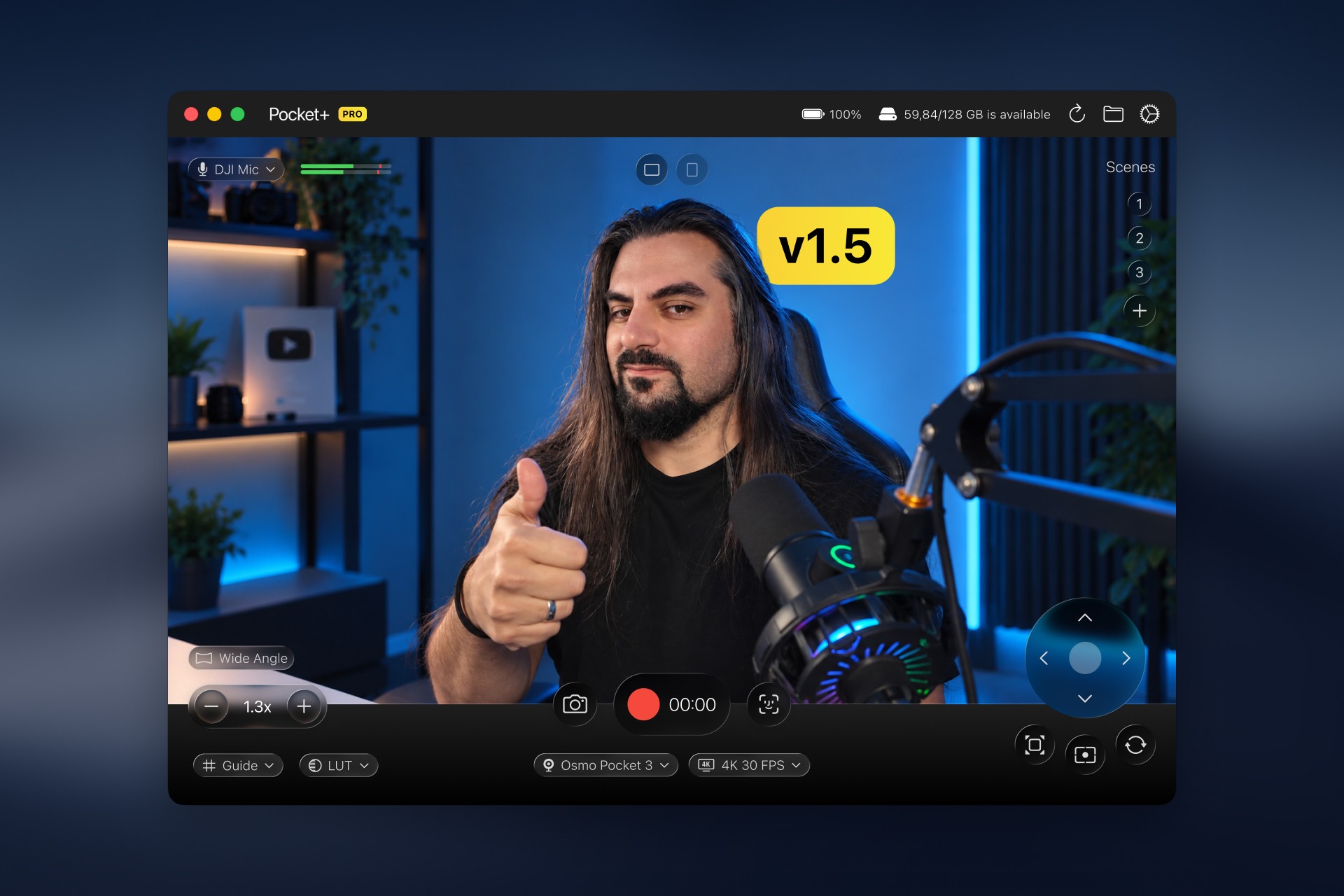
Out of the box, the Pocket works as a good fixed webcam. To control it from the Mac, you need an app that talks to the gimbal. That's what we built Pocket+ for:
- Drag the picture to aim the gimbal, and scroll to zoom.
- Save camera angles as scenes and switch between them with shortcuts.
- Use face tracking and auto framing.
- Record straight to the Mac, with LUTs.
The basics are free. Pocket+ is a camera app, not a virtual webcam: for calls, keep using the Pocket directly in Zoom or Meet as described above.
Pocket+ is a free Mac app for the DJI Osmo Pocket 2, 3, 4 and 4P: aim the gimbal, track your face, switch scenes and record to your Mac.
Download Pocket+